How Do I Automatically Post From Facebook to Instagram? Steps, Fixes and How to Stop It
By the CredibleAI team ·
How do I automatically post from Facebook to Instagram? Add both accounts to the same Accounts Center, then in the Facebook phone app start a post, tap Instagram, open Accounts Center and turn on Your Facebook posts. Text-only posts and albums over 10 photos stay on Facebook, and the Instagram button shows Off.
Every step below follows Meta's own help pages as they read on 17 November 2026, each linked in case a menu has moved.
How do I automatically post from Facebook to Instagram?
You automatically post from Facebook to Instagram by tapping Instagram under your name while you write a post in the Facebook phone app, opening Accounts Center and turning on the toggle next to Your Facebook posts.
These are Meta's steps for sharing your Facebook posts to Instagram, checked on 17 November 2026. To send every post from now on:
- At the top of your Feed, tap What's on your mind?
- Below your name, tap Instagram.
- Tap Accounts Center.
- Next to Your Facebook posts, turn the toggle on.
Meta wrote these steps for a personal profile, and the Meta pages we read give no separate path for a company Page. So after you turn it on, post once as your Page and check that the Instagram button is there and does not show Off before you rely on it. For Page posts, Meta's page on what happens when you connect a Facebook Page and Instagram says people with full Facebook access can share them to Instagram.
To send one post and leave the rest alone:
- Tap What's on your mind? and add your photo and caption.
- Below your name, tap Instagram.
- Turn on one-time sharing to Instagram.
- Tap Go back to save your choice.
- Tap Post. It appears on Facebook and on Instagram.
All of this happens in the Facebook app on iPhone, iPad and Android. Meta's page on sharing Facebook posts on your Instagram profile says the feature isn't available on computers.
What do I need first, and how do I switch to an Instagram business account?
Meta's sharing page asks for one thing first, both accounts in the same Accounts Center, and for a company Page we would add full access to the Page and a professional Instagram account linked to it.
Only the first of those is Meta's stated requirement for the toggle. Full access comes from Meta's line about who can share Page posts. The professional account is our advice. The Page has to be a company Page, not your personal profile.
When you link a personal Instagram account to a Page in a business portfolio, Meta may prompt you to switch to a professional account. Switching first saves that detour.
Here is how to switch, from Meta's page on setting up a professional Instagram account, checked on 17 November 2026:
- In the Instagram app, open your profile and tap the menu.
- Tap Settings and activity.
- Below For professionals, tap Account type and tools.
- Select Switch to professional account.
- Pick the category closest to your trade.
- Choose Business, then tap Next.
- Connect your Facebook Page when it asks, or skip that and link it in the next section.
Choosing Business over Creator for a company account is our advice, not Meta's.
The same page carries two warnings. A private account becomes public when it switches, and switching back to personal disconnects any Facebook Page connected to it.
A two-truck plumbing company's Instagram started as the owner's private account, fishing trips included. The moment it switches to professional it goes public, and any pending follow requests are accepted without a tap. Clear out what a customer shouldn't see before you switch.
How do I link Instagram to my Facebook business Page?
You link Instagram to a Facebook business Page on a computer by switching into the Page, opening Settings and privacy, then Settings, then Linked accounts, clicking Instagram and connecting the account.
Meta's steps to connect or disconnect Instagram and your Facebook Page, checked on 17 November 2026:
- Log in to Facebook and click your profile photo.
- Click See all profiles, then select the Page you want to switch into.
- Click your Page's profile picture.
- Click Settings and privacy, then click Settings.
- Under Permissions, click Linked accounts.
- Click Instagram.
- Click Connect account, then follow the steps on screen.
Facebook access or task access to the Page is enough for this. The Instagram login usually lives on the owner's phone, so link while the owner is in.
Which posts go through when I share a Facebook post to Instagram?
A single photo or a set of up to 10 same-size photos usually goes through, and anything Instagram can't take stays on Facebook with the Instagram button showing Off.
Use this table before you tap Post. It follows Meta's list of posts that can't be shared.
| Post on Facebook | Goes to Instagram? | What to do instead |
|---|---|---|
| One job photo | Usually, and it may be cropped slightly | Keep the job in the middle of the frame |
| Up to 10 photos, all the same size | Usually | Shoot the whole set the same way up |
| More than 10 photos | No | Pick your best 10 |
| Photos of different sizes, or very tall or wide | No | Crop them to one size first |
| Several videos in one post | No | Post one video at a time |
| Text only, a live video or a reshare | No | Add a job photo |
Meta's list also names posts with features Instagram doesn't have, some creative tools among them, so even a single photo is not a sure thing. If a post can't be shared, the Instagram button shows Off. Look at it every time. The list says nothing either way about a single video, so check the button there too.
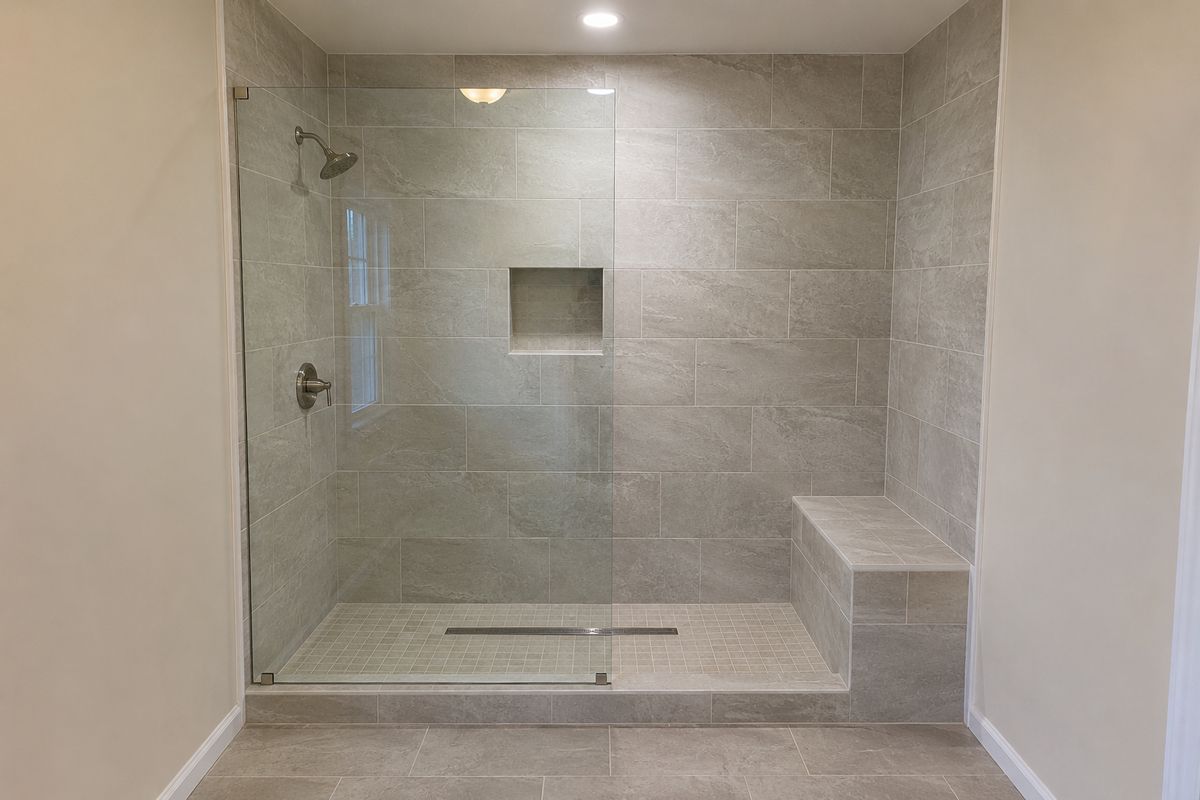
Plan for the slight crop. A walk-in shower shot from the doorway, with some wall on every side, survives it. One with the bench hard against the edge of the frame can lose the bench.
Why is Instagram not showing when I post on Facebook?
Instagram goes missing for one of five reasons, the first, second and fifth from Meta's pages and the third and fourth our best guesses.
- You're on a computer. Your office manager posts Monday's job photo from the office desktop and no Instagram button appears, because sharing only exists in the phone apps. Post from a phone.
- The accounts aren't in the same Accounts Center. Start a post, tap Instagram, tap Accounts Center and add the Instagram account if it is missing.
- Check the Instagram account type. Meta's page does not name this as a cause, but a personal account is the first thing to rule out for a Page. Switch it with the steps above, then link it.
- Check your access to the Page. Meta names full access for sharing Page posts, so partial access is the next thing to rule out. Ask whoever made the Page.
- The post is a type Instagram can't take. The button is there but shows Off. Add a photo or trim the album.
How do I stop Facebook from posting to Instagram?
To stop Facebook from posting to Instagram, start a new post in the Facebook app, tap Instagram, open Accounts Center and turn off Your Facebook posts.
There are three levels, lightest first.
- Stop one post. Before you tap Post, tap Instagram under your name and turn one-time sharing off.
- Stop every post from now on. Tap Instagram, tap Accounts Center and turn off the toggle next to Your Facebook posts.
- Unlink the accounts. On a computer, switch into the Page and go back to Linked accounts, then Instagram. Click Disconnect account, then Yes, disconnect.
Think twice about the third. Unlinking ends the connection the Page inbox uses for Instagram comments and messages, so check with your team first. Meta also says that in some cases it cancels an active Meta Verified subscription.
Meta's page does not say that turning sharing off removes posts already shared. If a crew cookout photo reached Instagram by mistake, delete it there.
Can I post to Facebook and Instagram at the same time and schedule it ahead?
Yes for a post you send now, because the sharing toggle puts one post on both, but Meta's scheduling page covers a Facebook Page post only, between 20 minutes and 29 days away, and does not mention Instagram.
To line Page posts up in advance, these are Meta's steps to schedule a post for your Facebook Page, checked on 17 November 2026:
- Switch into your Page.
- Open Meta Business Suite.
- Click Create post and add the photo and caption.
- Next to Scheduling options, click the Set date and time toggle and set both.
- Click Schedule.
- To change it later, click Planner in the left menu.
Meta describes Meta Business Suite as a place to create or schedule posts, stories and ads for your business. Its scheduling page does not mention Instagram, so open the Create post screen and look for an Instagram option before you count on a scheduled post reaching both.
The date picker has an Active times button with Meta's suggested hours, and our guide to the best time to post on Facebook for contractors covers what to pick. What to hand to a tool and what to keep is in how to automate social media posts.
Should a contractor use the same caption and photo on Facebook and Instagram?
Use the same job photo on both, and write the caption twice when you have the time: the whole story on Facebook, and two or three lines under the picture on Instagram.
Give Facebook the full job caption, with the job, the street and the town. Give Instagram two or three lines under the photo. With sharing on, the post goes to Instagram with the caption you wrote for Facebook, which is faster. Check how it looks on Instagram the first time. Two captions read better. If you use hashtags, put them on the Instagram caption only.
Here are three jobs written both ways. Fill every [bracket] with your own details, and delete any bracketed line that isn't true of your job.
- Roofing, for Facebook. The finished roof from across the street, ladder still at the eave. Caption: "Ladder's still at the eave on [street] in [town], and the last bundle went up at [time]. Full tear-off, [soft decking near the chimney / a rotted section at the eave] replaced, [architectural / 3-tab] shingles in [color]. [Magnet sweep for nails done before we left.] Message us with questions about your own roof."
- Roofing, for Instagram. The same photo. Caption: "[Color] [architectural / 3-tab] shingles on a [town] roof, finished [day]. [Decking checked board by board.]"
- HVAC, for Facebook. The new furnace in the basement with the panel back on. Caption: "The [age]-year-old furnace on [street] had been [short-cycling / rattling] since [month]. The new one is in and the basement is warm. If yours is getting on in years, book a tune-up before [month]."
- HVAC, for Instagram. The same photo. Caption: "Out with the [age]-year-old furnace, in with the new one. Warm house in [town] by [time]."
- Cleaning, for Facebook. The empty kitchen with the oven door open. Caption: "Move-out clean in [town], ready for the landlord's walk-through on [date]. Inside the oven, every cabinet, the baseboards and the window tracks. We are booking move-outs for [month] now."
- Cleaning, for Instagram. The same photo. Caption: "Oven, cabinets and baseboards done. This one in [town] is ready for the walk-through on [date]."
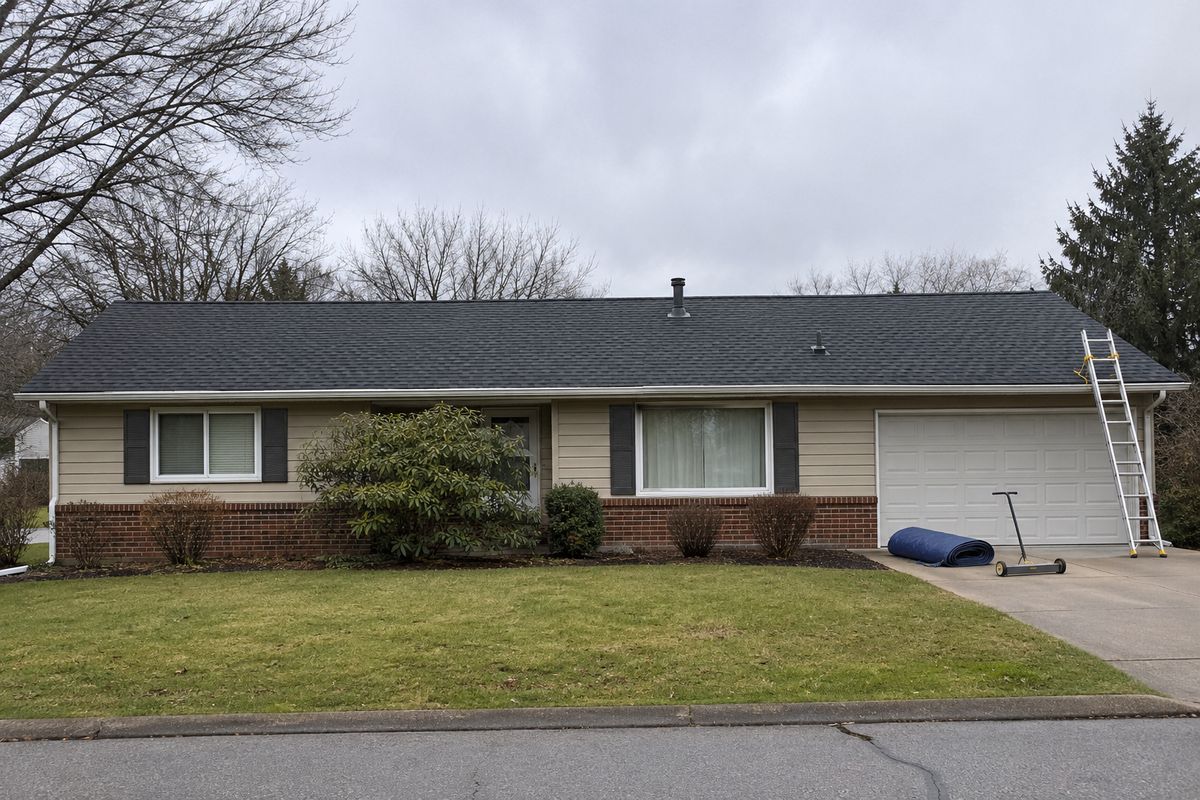
A homeowner who looks you up reads that Facebook caption, so it is the one worth writing in full. Our guide to roofing leads from social media goes further into that.
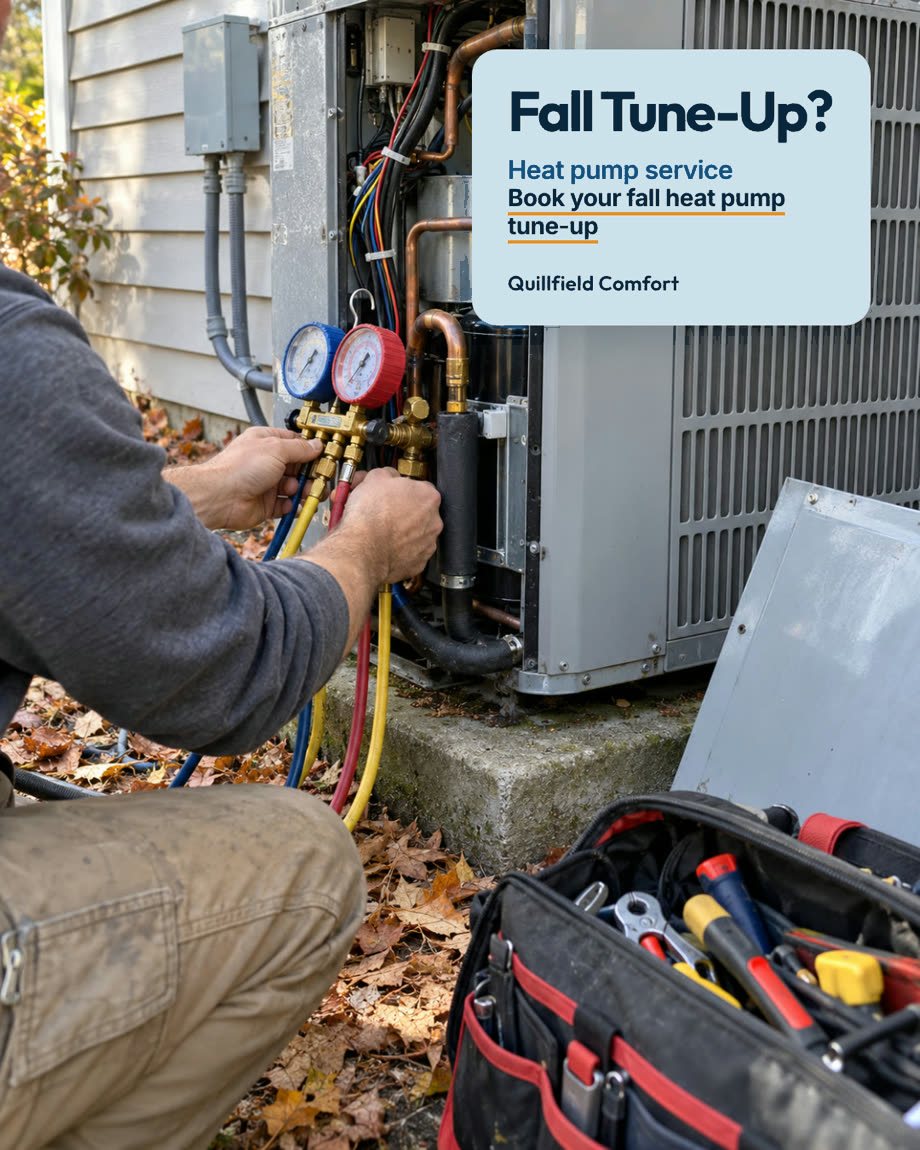
For more captions to shorten the same way, see these HVAC social media post ideas and these cleaning post ideas.
What should I not do when I cross-post from Facebook to Instagram?
Don't let the toggle send things to Instagram that you never meant for it.
- Don't leave Your Facebook posts on if you use the same Facebook login for personal posts. The toggle in Meta's steps sits on the Feed you post from, so a weekend photo of the kids can land on the company Instagram.
- Don't expect a text-only notice to reach Instagram. "We're closed Friday" needs a photo of the shop door.
- Don't give everyone full Page access just to make sharing work. Give it to the one person who posts.
- Don't switch Instagram back to a personal account to fix a glitch. Meta says that disconnects any Facebook Page connected to it.
- Don't post a customer's house with the number showing. Ask before you post the house at all, and crop out the number and any license plate.
Can CredibleAI post to my Facebook Page and Instagram for me?
CredibleAI posts to your Facebook Page and your Instagram business or creator account, so you connect them once and each post goes to both. The posts are made from your own job photos, each with its caption written and its picture designed in your colors. You approve each regular post, or press Make my week to schedule the next seven days in one press. It is social media automation for contractors at $199 a month or $1,999 a year, after a 7-day free trial of up to 7 posts, and you can read how CredibleAI works before you start.

Facebook to Instagram FAQ: what else do owners ask?
The other direction, computers, team access, the Page inbox and older posts, in short answers.
How do I automatically post Instagram posts to Facebook?
You automatically post Instagram posts to Facebook from Accounts Center in the Instagram app. Tap Connected experiences, then Sharing across profiles, and turn on Your Instagram posts. Meta's steps for sharing Instagram posts to Facebook work only in the phone app. The same toggle turns it off.
Can I share Facebook posts to Instagram from my computer?
You can't share Facebook posts to Instagram from a computer, because Meta says the feature isn't available there. It works in the Facebook app on iPhone, iPad and Android. If the office posts from a desktop, write the post on a phone instead.
Who on my team can share our Page's posts to Instagram?
People with full Facebook access to the Page can share its posts to Instagram, in Meta's words. Task access is enough to link the accounts, but Meta names full access for sharing Page posts. If you want your office manager to automatically post from Facebook to Instagram, give that one person full access.
Can my team answer Instagram comments and messages from Facebook once the accounts are linked?
Your team can answer Instagram comments and direct messages from the Facebook Page inbox once the accounts are linked, if you allow it. Meta lets you give that to people with Facebook access and task access, so pick people you trust to talk to customers.
Can I share a Facebook post to Instagram after I've already posted it?
Sharing a Facebook post to Instagram after it is already up is not something Meta's help page describes. Its steps cover only the choice you make before you tap Post. For an older job, post the photo again from the Instagram app with a shorter caption.